2. Menu Stucture
2.1. Start menu
Contains:
- Load Data (Ctrl+O) - loading a dataset into the data tree
- Save (Ctrl+S) - saving the chart view to an image or pdf
- New Data (Ctrl+N) - creating a new dataset (maybe using the currently selected)
- Reshape (Ctrl+R) - reshape the current dataset.
Enter the comma separated new shape into the
new shapetext box. Suggestions will be made whenever you type a comma. - Difference (Ctrl+D) - calculate the difference of two values in the tree view.
Select two values with equal shapes from the tree view and press the
Calculate the Differencebutton. A new dataset will be created containing both values and the difference of the two - Delete All Data (Ctrl+X) - clear the complete data tree
2.1.1. New Data
Opens a new window to generate a new dataset.
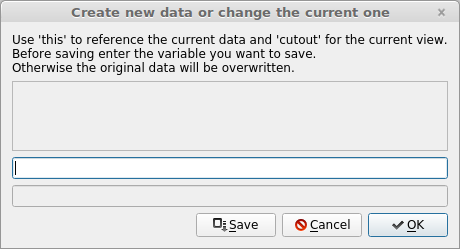
Enter any python expression into the text field and press OK. If it is a legitimate assignment it will be run and added to the history above. Otherwise an error will be shown below. You can use the keyword this for operations on the current dataset. Furthermore the keyword cutout refers to the currently cut-out part of the current dataset (= what you see in the charts view). After running your calculations the value can be stored using the Save button. If you leave the text field empty, the currently selected data will be overwritten. When adding any of the formerly created variable names to the text field a new dataset will be created with that name and the respective value.